How to unlock 2Degrees Fritzbox to be used in any other Fibre Network
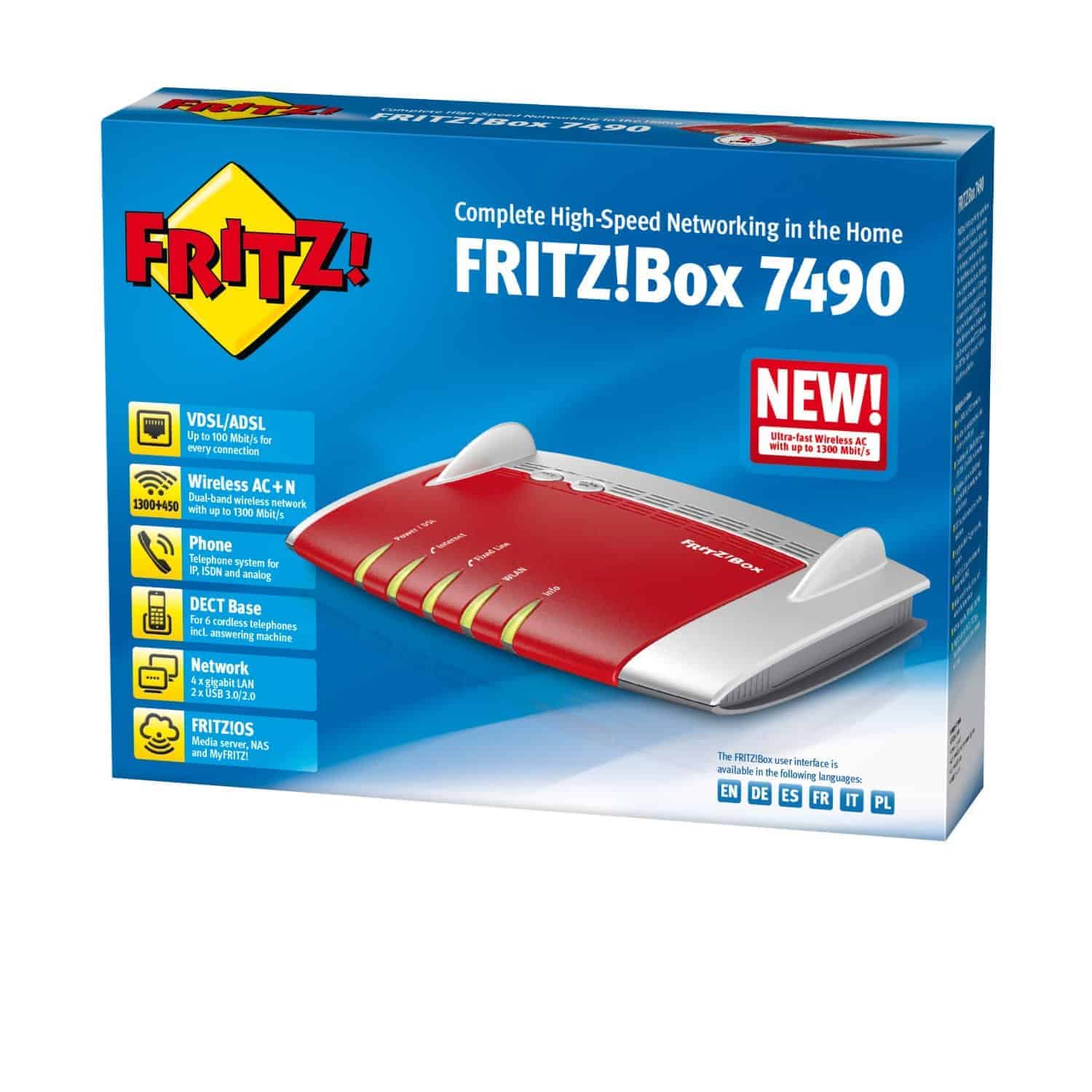
This guide supports both FRITZ!Box 7490 and FRITZ!Box 7390, tested on Win10
It's quite annoying when you want to change your network provider and cannot use your old router as its network locked.
Fritzbox! is a German made, popular mid-range router which is popular for the quality of connection and wifi range.
2Degrees normally give them away free for new connections and they are miles ahead compared to standard Huawei routers (vodafone, spark etc).
2Degrees Fritzbox! is normally managed by 2Degrees it self. All the settings are synced from 2degrees, as customer can easily plug and startup their connection.
But when you want to move the same router to a different network, it might work on VDSL/DSL. But when it comes to Fibre, you need to explicitly set PPPoE settings with network provider username and passwords.
But 2Degrees Fritzbox! firmware wont allow you to change PPPoE settings upfront. As its a managed router, settings are hardcoded and cannot be changed by the user.
If you are person who want to move your Fritzbox! to a different network or a person who purchased Fritzbox! from Trademe trying to configure Fibre/UFB on it. This is how you going to do it.
- Download the recovery tool for your Fritzbox. This can be found on the AVM FTP server ftp://ftp.avm.de/fritz.box/. Once on the AVM FTP you will need to navigate to the directory that relates to your fritzbox.
- Now navigate to the x_misc folder. Next select the correct folder for your language. Finally you need to download the executable namedFRITZ*.recover-image.exe where the * is the model of your Fritzbox, languages and firmware version, download and save this file
- Connect an Ethernet from LAN1 on the Fritzbox to your PC directly. Disconnect all other network cables from the Fritzbox.
- Run the recovery tool on a Windows 7/8/10 machine (NOTE: do NOT run as administrator), and follow the instructions. You'll need to power-off the device, select the NIC on your PC that you connected to, and then power the device back on.
- After the recovery tools starts talking to the device it will establish an IP address and check the software version.
- Then you will get to the point where it complains about the settings being set by a service provider.
- At this open, open a Command Prompt, and type the command: "ftp
" replacing the IP address with the one shown in the recovery tool. - You will connect to the ADAM2 boot loader ftp server. Login with the username "adam2" and password "adam2".
- At the ftp prompt run the command: "quote UNSETENV provider". It will respond with a successful confirmation. Then type "quit" and close the command prompt.
- Now you can close the Fritzbox recovery tool. Then open the recovery tool, again following the instructions. This time you should not be presented with an error about the provider and the tool should flash the Fritzbox.
Comments
Post a Comment